My First CollabXR Mod
CollabXR relies on Prefabs for spawning and interacting with.
A mod may contain multiple prefabs, or just a single one. When a prefab is spawned, all clients must download the corresponding mod (if it is not already cached), so take bundle size into consideration when choosing how to organize your mod(s).
Prefab Setup
In any scene, create an empty Transform for the root of your prefab, and ensure that its scale is (1, 1, 1).
Add a Box Collider to it–this will ensure users inside Collab can grab and manipulate your prefab.
You can add any child transforms and components you like to the object, so long as they are native to Unity (not a custom MonoBehavior). Meshes, line renders, and even utilities like LOD Groups should work out-of-the-box.
Specific components, like AnimationControllers or audio players may require use of certain Mod Extras components in order to properly synchronize across clients.
Once your Transform is set up, drag the GameObject into your Project window (the place with all the files) to save it as a prefab.
Adding Functionality
Additional functionality, like animation playback and object toggling can be added via the Mod Extras package.
For a more refined experience, be sure to set up your materials in a compatible manner.
Publishing Your Mod
Note
In order to publish your mod, you will need access to a Mod Repository. If you do not have access to one, you can host your own.
Configuring the Asset Bundle
Because CollabXR Mods are based on Unity AssetBundles, you need to add everything you want to package in to your mod (including all prefabs and assets) to an AssetBundle.
To add an asset or prefab to an AssetBundle, click it in the Project window and open the Inspector window, and click the drop-down at the bottom labeled AssetBundle.
From there, you can select an existing AssetBundle or click New... to create one.
The name is not permanent, and is only used inside of Unity, so feel free to give it a name that helps you.
Uploading to AWS
To upload your mod, you will need to add the CollabXR Mod Packager package to your project, and access to a mod repository.
Once the mod packager is installed, go to CollabXR Modding Tools > Open Mod Packager on the window toolbar.
Authenticate with your repository (if necessary), then go to the Mod Builder tab.
Select your target AssetBundle. The mod packager will reimport all assets to ensure a proper build.
Find your desired Prefab(s) for spawning in CollabXR, and check the Menu Object box, before filling out the mod information (such as Category, which determines where in the Spawn Menu your prefab will appear).
Once all prefabs are marked, select your target platforms on the bottom left.
Finally, press Build and Publish. This will build the AssetBundles and metadata to
Assets/Build/, and upload them to the mod repository (if authenticated).You can refresh your mod list in CollabXR by going to Settings > Mods, or by just rejoining a room.
Building Offline for Self-Hosted Repositories
If you are hosting your own mod repository solution rather than using AWS, you can build mods offline without needing to authenticate.
Once the mod packager is installed, go to CollabXR Modding Tools > Open Mod Packager on the window toolbar.
Switch to the Mod Builder tab.
Select your target AssetBundle. The mod packager will reimport all assets to ensure a proper build.
Find your desired Prefab(s) for spawning in CollabXR, and check the Menu Object box, before filling out the mod information (such as Category, which determines where in the Spawn Menu your prefab will appear).
Once all prefabs are marked, select your target platforms on the bottom left.
Press Build Offline. This will build the AssetBundles and metadata to
Assets/Build/directory. You will need to copy these files into your mod repository.In your mod repository, update the
manifest.jsonfile to include the UUID of your new mod. The mod UUID is both listed both in the name of the built.meta.jsonfile and inside of it.You can refresh your mod list in CollabXR by going to Settings > Mods, or by just rejoining a room.
Custom Thumbnails
The mod packager will automatically generate Prefab thumbnails during the build process.
However, sometimes it is necessary to create a custom thumbnail for your Prefab (for example, if many Transforms are toggled off by default). Thumbnails should be imported to Unity as a 64x64 PNG image with the following import settings.
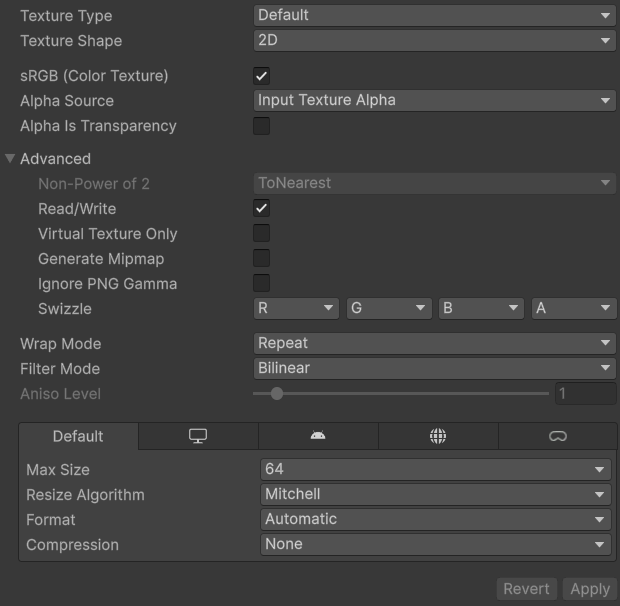
You can assign this texture to your prefab in the Mod Uploading window. The imported texture does not need to be a part of your AssetBundle.