Troubleshooting
QR Codes Best Practices
We heavily recommend printing a sheet of paper for each QR Code for portability and consistency.
Ensure your QR Code is large enough to be clearly visible on the headset cameras
Ensure your QR Code is in bright lighting or on a bright screen
Ensure there is a small, white border surrounding your QR code so it can be detected by the headset
Ensure only one QR Code is visible within your peripheral vision at a time (to prevent the headset from focusing on the wrong QR Code)
Pair a label with the QR code so you can remember what it is
 Colocation
“Colocation” is a state where multiple devices are tied to the same shared, collaborative space. This is key to the instructional aspect of CollabXR, where interactions in both a physical space and digital space can work together.
Classroom QR Codes
QR Codes enable colocation by defining a 3D position and orientation that most devices can understand. For the best experience, it is recommended to follow these practices when creating classroom QR Codes, as well as the general best practices.
Always place your room’s QR Code flat on the floor
Do not move the QR Code after connecting to a room
Place your QR Code in a spot where it is unlikely to be stepped on
If printed, include the room code as text on the same sheet of paper so a user can manually type in the room coode if needed
Note
You may be unable to scan QR Codes while casting to Meta Horizon. We recommend joining a classroom before starting casting, and keeping that headset awake to minimize risk of the headset falling asleep and drifting during the class.
Colocation Drift
Devices can sometimes “drift” and lose their colocation due to poor tracking, latency, or the device falling asleep. This can be fixed by re-scanning the QR Code with the drifted device while inside the classroom.
Open the menu using the red
 Menu button on your Quest controller
On the bottom bar, select the
Colocate buttonStand next to your QR Code and look directly at it
If the colocation was successful, you should see the axis arrows re-appear on top of the QR Code. If the axis is not re-aligning with the QR Code, you may need to exit and rejoin the classroom.
You can typically tell if a user is not colocated because the “User” tag above their head will be either offset or not be visible at all, and they will not see objects in the same position as you do. If everyone appears to have drifted, you may actually be the user that is not colocated.
Note
The  Teleporter tool will disable colocation when used.
This is useful for remotely moving around a large classroom, but will cause apparent drift.
Enabling Permissions
CollabXR requires permission to perform certain actions such as scanning QR Codes and enabling depth shaders.
If you did not enable permissions, or were not prompted to, you can change them by opening the main settings, scrolling to the Privacy and Safety category on the left-hand side of the menu, clicking on the Installed apps section, and finding the CollabXR application.
Note
If your application was side-loaded, you may need to scroll to the very bottom of the Installed apps list.
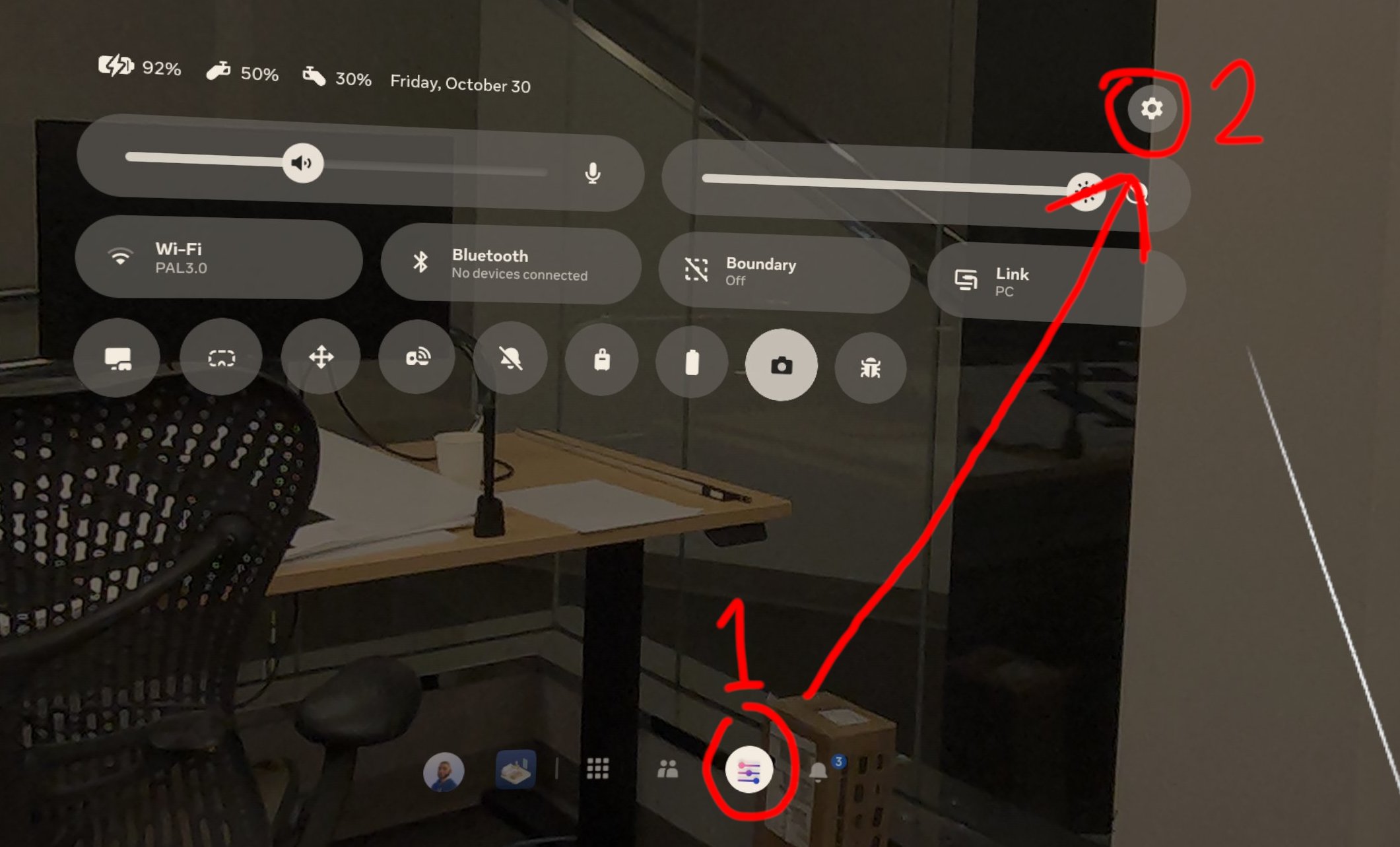
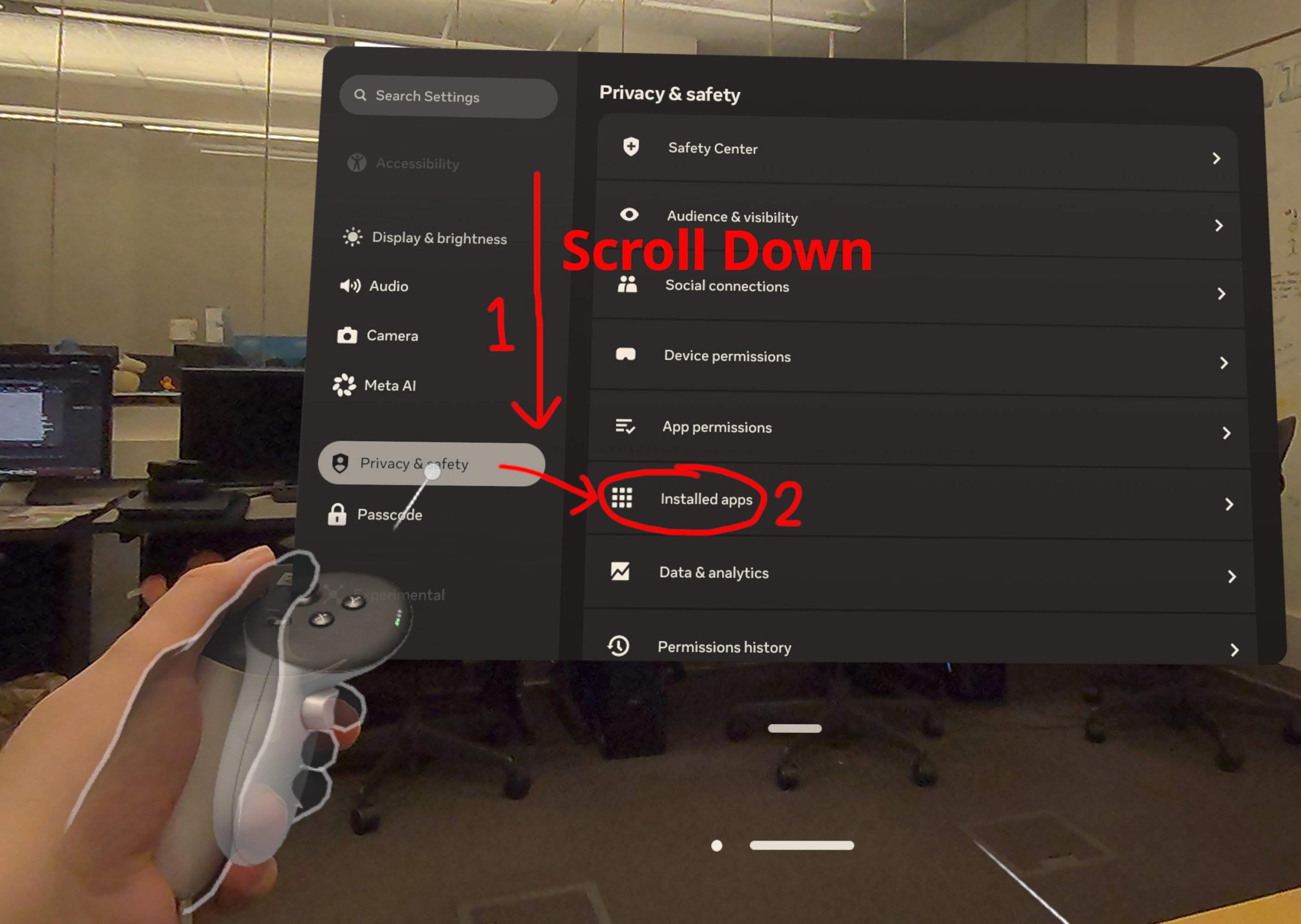
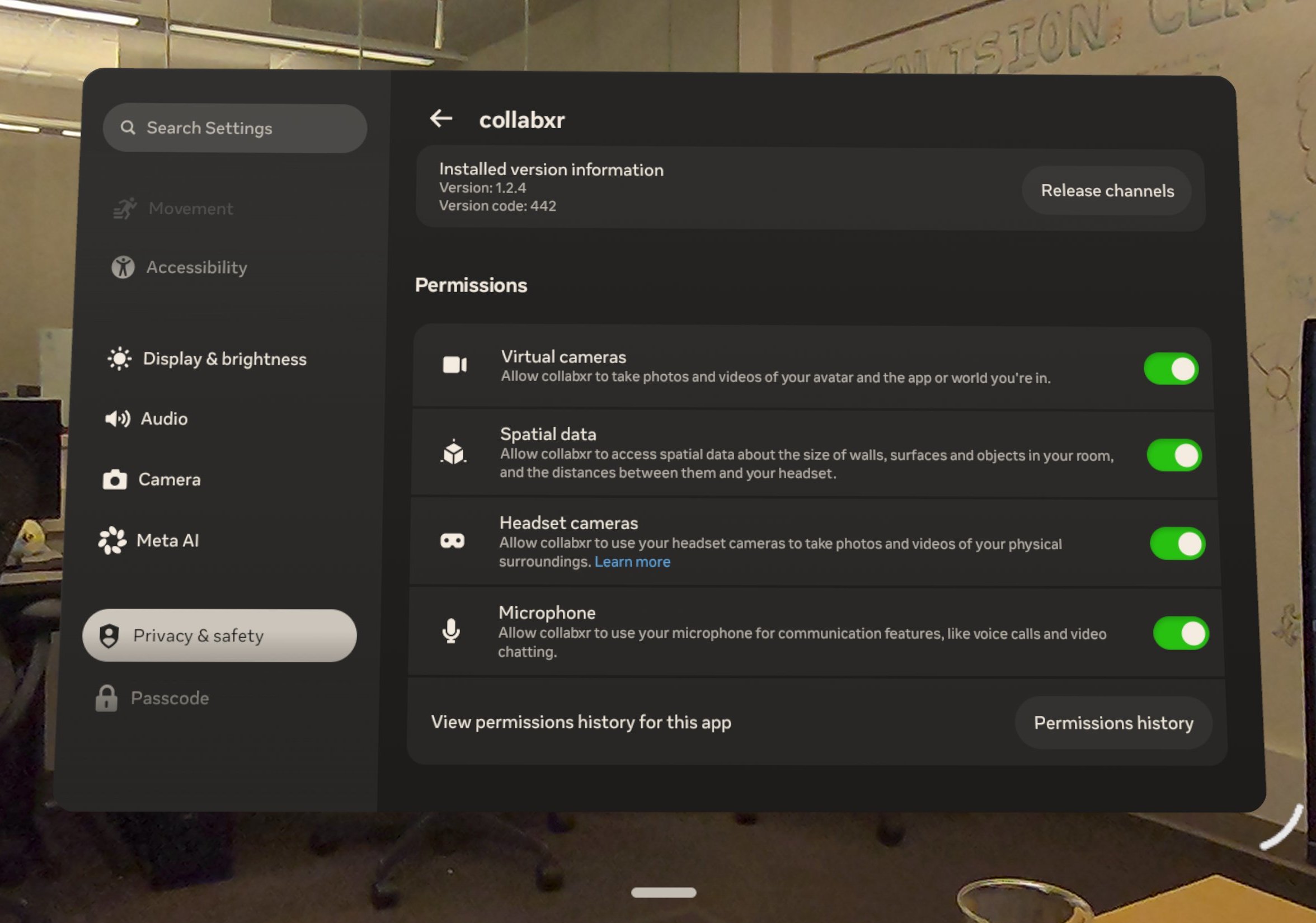
The most important permissions are Headset cameras for allowing the scanning of QR codes, and Spatial data so CollabXR can provide proper depth occlusion. Additionally, Microphone access can allow voice chat when interacting with a classroom remotely.
CollabXR does not send any camera or spatial data off the device. Microphone audio is only sent to other clients in the classroom via the Photon Voice SDK when the user’s microphone is unmuted, and the audio is never stored.
Note
For additional assistance, see Meta’s article view and manage app permissions for Meta Quest.