Controls and Usage
Controller Guide
We will be referring to different buttons on the controller using this guide, modified from Meta’s controller documentation.
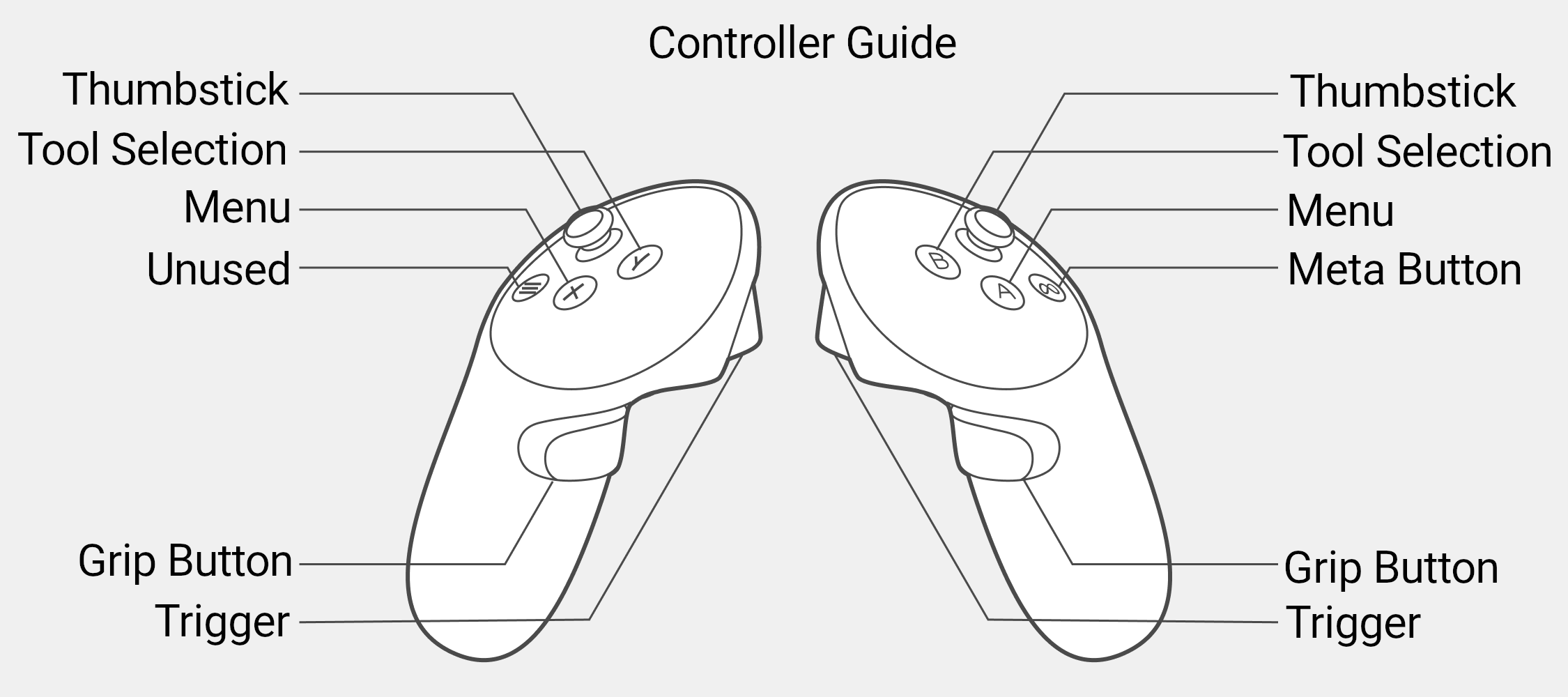
Note that both controllers work the same and function independently.
Grabbing Objects
After placing your hand inside an object, you can press and hold the Grip Button to grab the object and move it through 3D space.
If you grab the object with both controllers, then move your hands apart or together, you can scale the object to be larger or smaller. Additionally, simply holding forward or back on the thumbstick will scale the object as well.
The tool in your hand is disabled while grabbing objects.
Tools
Tools allow you to perform certain interactions such as spawning objects, deleting them, moving far-away objects, drawing on them, and even customizing their behavior.
To select a tool, hold your arm in front of you, then press and hold the blue  Tool Selection button on your controller to open a radial menu.
Move your hand over the tool you wish to select.
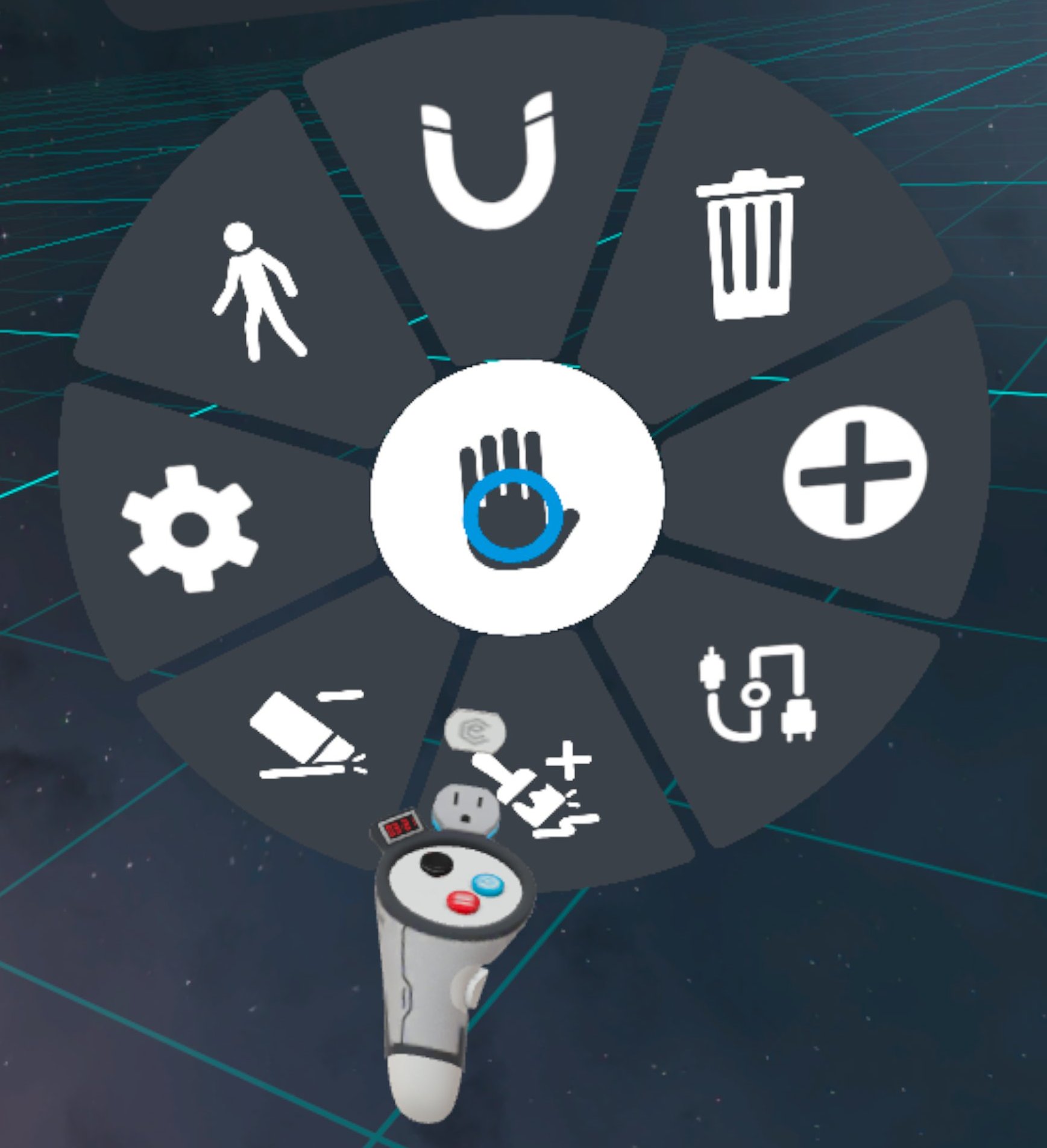
 Grab Tool
This tool does not do anything, but you can still grab objects in your hand using the Grip Button.
Quickly tapping the Tool Selection button will automatically select this tool.
 Move Tool
The Move tool allows you to move and rotate objects from a distance, by aiming at them with the controller and pressing Trigger.
You can move the Thumbstick from side to side to rotate the object, and push the Thumbstick forward or backward to move the object closer or further away from you.
 Add Tool
The Add tool allows you to create objects selected from the menu.
Aim at the location you desire, press Trigger, and the object will be created.
The controller will swap immediately back to the Hand tool afterward.
This tool will do nothing until you select an object from the object menu.
 Delete Tool
The Delete tool allows you to delete objects by aiming at them and pressing Trigger.
 Paintbrush
The Paintbrush tool allows you to paint lines when holding the Trigger.
You can move the thumbstick around to change the color of the brush.
Strokes can be grabbed, rotated and scaled like regular objects. Drawing multiple strokes on top of each other will cause them to combine, allowing you to treat them as one object.
 Brush Eraser
The Brush Eraser tool allows you to erase drawings when holding the Trigger and swiping it through a drawn stroke.
 Teleporter
The Teleporter allows you to choose a location to teleport to by aiming at the floor.
This will cause you to no longer be colocated as the origin of your space changes.
This tool is intended for users joining a classroom remotely to move freely around the space regardless of the size of their actual room.
 Context Tool
The Context tool allows you to modify an object’s behavior, if any are specified.
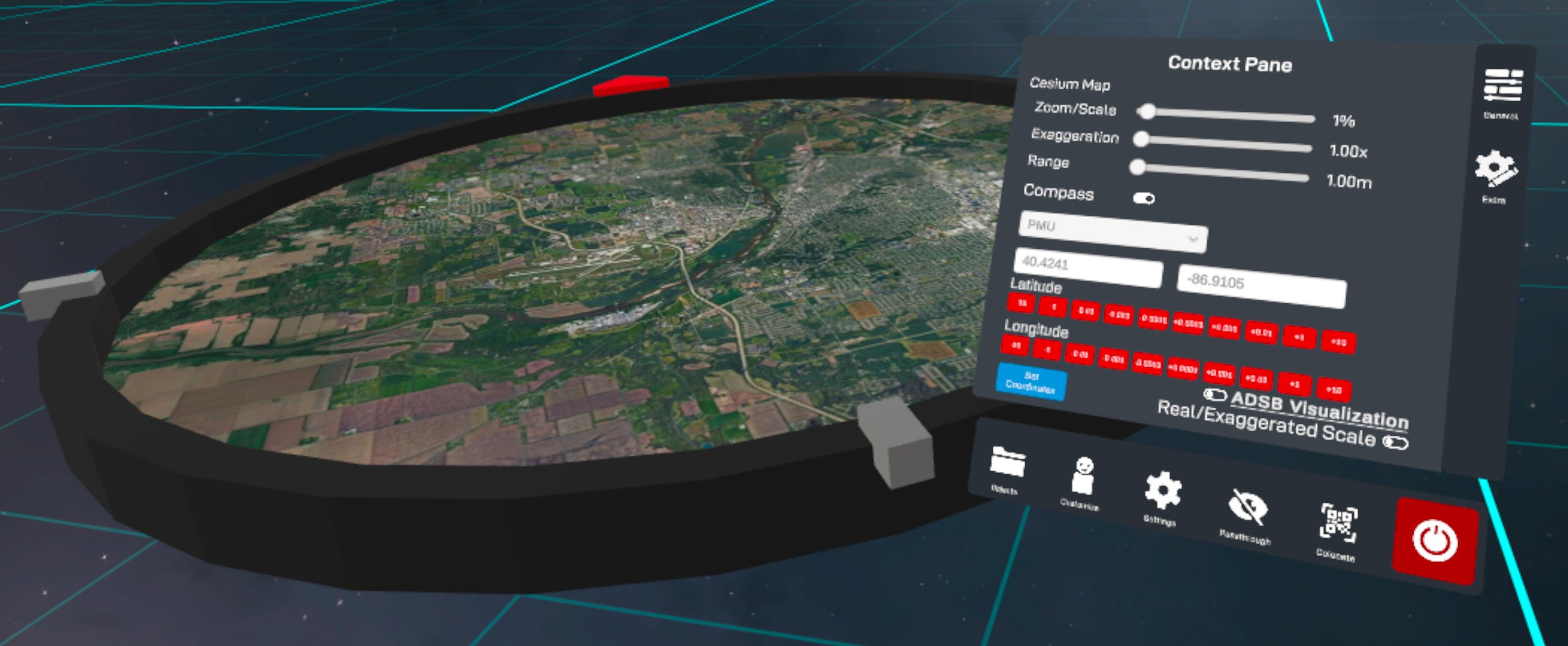
Aiming at an object and pressing Trigger will open a Context Menu which may have settings such toggleable layers and sorting priority.
There may also be additional tabs at the right-hand side of the menu, for more specific things, like choosing a Cesium map location.
To interact with the Context menu, aim at it and press Trigger.
You can hide the Context menu by pressing the  Menu button.
 Linker
The Linker exposes sockets on certain objects, which you can draw a connection between by pressing and holding Trigger on one socket, and releasing Trigger after moving your hand to another socket.
You can perform the same connection a second time to disconnect the two sockets.
Connections allow data to be passed between objects and interpreted.
Only certain objects will have exposed sockets.
Connections can only be made between a Provider and Consumer of the same data type.
Consumers can typically only accept one Provider at a time.
Swap off the Linker by tapping the Tool Selection button again to hide the connections.
Note
The linker tool is currently experimental. Please report any issues you find on our GitHub!
The Menu
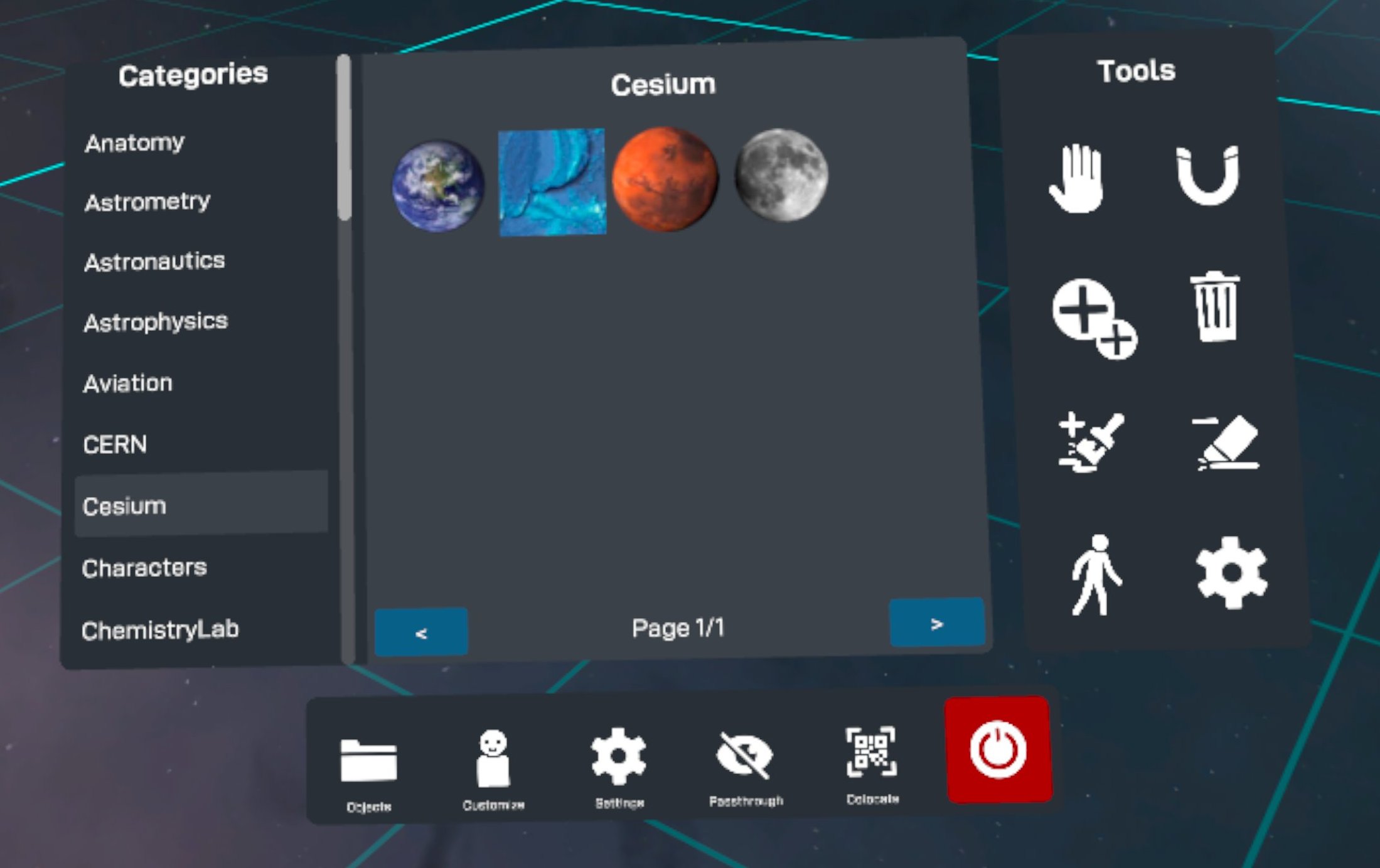
Pressing the red Menu button on the controller opens a menu in front of you, which you can aim either controller at and press buttons using Trigger.
You can change the menu tab by clicking the buttons on the bottom toolbar.
Object Menu
From this menu, you can browse your loaded mods and spawn them. All mod repositories you load will be catalogued here.
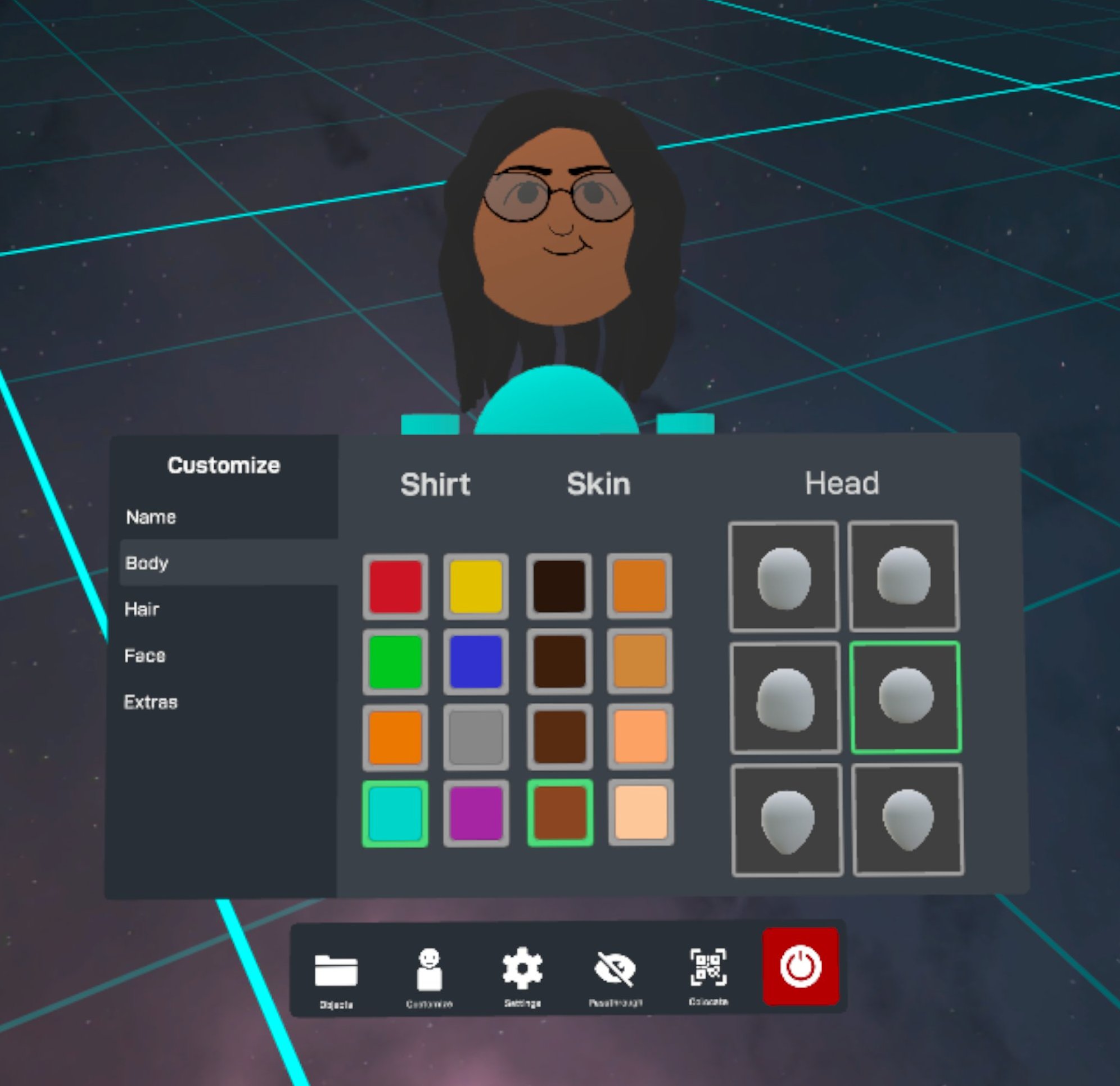
Customize Menu
From this menu, you can customize your avatar. Your avatar is only visible when passthrough is disabled.
Toggling Passthrough
You can toggle between VR and AR with the  /
 Passthrough button at the bottom of the menu.
Re-Colocating
If you notice that the virtual space and real space are not properly synchronized (for example, a user tag appearing far away from their body), you may need to re-anchor your virtual space to the real space by colocating.
To do this, press the  Colocate button on the menu, and look at the QR code you scanned to join the room.
For more information, see the colocation guide.